

PrestaShop Google Tag Manager documentation
Comprehensive documentation for PrestaShop module advanced integration with Google Tag Manager (cc_ps_googletrack) with support for Enhanced Ecommerce, Enhanced Conversions and full event setup.Table of contents
- Introduction
- Installation and system requirements
- Module activation
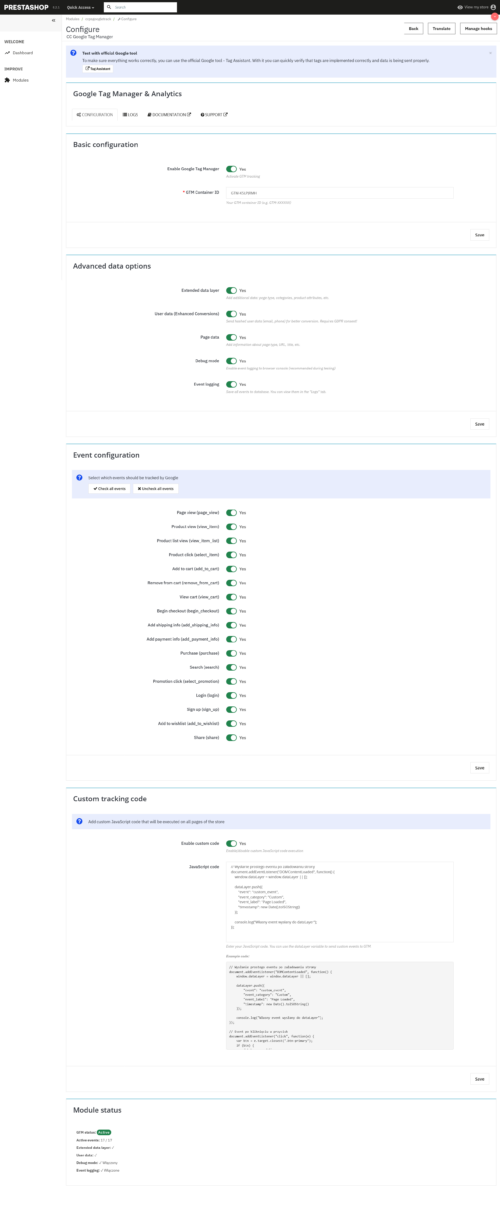
- Basic GTM configuration
- Event configuration
- Extended data layer
- Enhanced Conversions (user data)
- Debug mode
- Event registration
- Your own tracking code
- Translation system
- Events – details
- Events calendar
- Tag Assistant Test
- Troubleshooting
- FAQ
1. introduction
CC Google Tag Manager is an advanced PrestaShop module that provides full integration with Google Tag Manager. The module automatically tracks all key Enhanced Ecommerce events in accordance with the latest standards.Key features of the module:
- Full integration with Google Tag Manager (GTM)
- Automatic tracking of 18 different events
- Enhanced Ecommerce in accordance with Google standards
- Enhanced Conversions with hashed user data
- Extended data layer (dataLayer) with additional information
- Configuration of enabling/disabling individual events
- Debug mode with browser console login
- Logging events to a database with viewing
- Your own JavaScript code executed on all pages
- Full translation system (Polish, English, possibility to add other languages)
- Compatible with PrestaShop 1.7.x, 8.x, and 9.x
- Support for Google Consent Mode 2.0
2. installation and system requirements
System requirements- PrestaShop 1.7.0.0 or newer (tested up to version 9.0)
- PHP 7.4 or later
- Access to the PrestaShop admin panel
- Google Tag Manager account (free)
- Optional: Google Analytics 4 (free)
- Download the ZIP file of the module from the official website. cocos.codes
- Log in to your PrestaShop admin panel
- Go to: Modules → Module Manager
- Click „Upload module” in the upper right corner.
- Select the downloaded ZIP file and click „Upload this module.”
- When the installation is complete, click "Configure"
- The module is ready for configuration.
Info
After installation, the module automatically registers all necessary PrestaShop hooks and creates a table in the database for logging events (if the function is enabled). The installation does not require any additional technical steps.
3. Module activation
The module does not require separate license activation—it works immediately after installation. However, to start tracking, we need to configure the basic settings.First steps after installation:
- Go to Modules → Module Manager
- Find the „Google Tag Manager CC” module”
- Click „Configure.”
- We will be redirected to the module settings page.
Tip
Before starting the configuration, it is worth preparing the GTM container ID (format: GTM-XXXXXX). We can find it in the Google Tag Manager panel after creating a new container for our website.
4. Basic GTM configuration
Configuring Google Tag Manager is the first step to setting up tracking in your store.Creating a GTM container:
- Go to tagmanager.google.com
- Sign in with your Google account
- Click „Create Account”
- Enter the account name (e.g., company name)
- Enter the name of the container (e.g., store name)
- Select „Web” as the container type
- Accept the terms of service
- Copy the container ID (GTM-XXXXXX)
- In the module configuration, find the „Basic configuration” section.”
- Check the „Enable Google Tag Manager” checkbox.”
- Paste the copied GTM Container ID (e.g., GTM-ABC1234)
- Click „Save” at the bottom of the page.
| Option | Description | Value |
| Enable GTM | Activates tracking by GTM | YES / NO |
| GTM Container ID | GTM container ID | GTM-XXXXXX |
- The GTM code (gtag.js) is automatically added to all pages of the store.
- The GTM script is placed in the section. <head>
- Noscript fallback is added immediately after <body>
- DataLayer begins collecting event data
- All events are automatically sent to GTM.
Success
Once correctly configured, the GTM code will be visible in the page source. We can check this by right-clicking → „View page source” and searching for GTM-XXXXXX. There we will find both the main script and the dataLayer.
5. Event configuration
The module supports 18 different events. Each event can be enabled or disabled independently according to business needs.List of available events:
| Event | Description | When is it called? |
| page_view | Page display | On every page of the store |
| view_item | Product display | On the product page |
| view_item_list | View a list of products | Categories, search results, home page |
| select_item | Clicking on a product | Clicking on a product from the list |
| add_to_cart | Add to cart | After adding the product to the cart |
| remove_from_cart | Remove from cart | After removing the product from the cart |
| view_cart | View cart | On the shopping cart page |
| begin_checkout | Start of order | First step in order fulfillment |
| add_shipping_info | Adding delivery information | Choosing a delivery method |
| add_payment_info | Adding payment information | Choosing a payment method |
| purchase | Purchase | Order confirmation page |
| search | Search | Using the store search engine |
| select_promotion | Clicking on a promotion | Clicking on a promotional banner |
| login | Login | Customer login |
| sign_up | Registration | New customer registration |
| add_to_wishlist | Add to wish list | Add product to wishlist |
| share | Sharing | Clicking on the social share button |
- In the module configuration, go to the „Event configuration” section.”
- Find a list of all 18 events
- Check the boxes next to the events you want to track.
- Uncheck the checkboxes next to the events you want to disable.
- Use the „Select All” or „Deselect All” buttons for quick configuration.
- Click „Save.”
// Konfiguracja eventów przekazywana do JS jako: window.ccpsEventConfig = { 'page_view': true, 'view_item': true, 'add_to_cart': true, 'purchase': false, // ... itd. };

// Sprawdzanie czy event jest włączony: function isEventEnabled(eventName) { if (typeof config.eventConfig[eventName] !== 'undefined') { return config.eventConfig[eventName]; } return true; // Domyślnie włączone }
Note
Disabled events are not sent to the dataLayer at all, which saves resources and does not clutter up data in Google Analytics. If an event is disabled, the message „Event disabled: event_name” will appear in debug mode instead of sending data.
6. Extended data layer
The Enhanced Data feature adds additional information to each event, enriching analyses in Google Analytics.What does the extended data layer contain?
- Website data – page type, URL, title, language, currency
- User data – customer status (visitor/guest/customer), user ID
- Product data – complete categories (up to 5 levels), brands, attributes
- Order details – delivery methods, payment methods, coupons
- In the module configuration, find the „Advanced data options” section.”
- Check the „Extended data layer” checkbox.”
- Check the „Website details” checkbox to add information about the website.
- Save your settings
dataLayer.push({ 'event': 'page_view', 'page_type': 'product', 'page_url': 'https://example.com/produkt', 'page_title': 'Product name - Store', 'language': 'en', 'currency': 'USD', 'customer_status': 'customer', 'user_id': 123 });| Page type | page_type value | When |
| Homepage | home | IndexController |
| Product page | product | ProductController |
| Category | category | CategoryController |
| Basket | cart | CartController |
| Order fulfillment | checkout | Order Controller |
| Purchase confirmation | purchase | OrderConfirmationController |
| Search | search | SearchController |
| Content page | content | CMS Controller |
| Other | other | All others |
- item_category – main category (with normalization – first letter capitalized)
- item_category2 – subcategory level 2
- item_category3 – subcategory level 3
- item_category4 – subcategory level 4
- item_category5 – subcategory level 5
Tip
The enhanced data layer is particularly useful when creating advanced segments in Google Analytics. For example, we can analyze conversions separately for different types of pages, languages, or customer statuses. Enabling this feature is highly recommended.
7. Enhanced Conversions (user data)
Enhanced Conversions is a Google Ads feature that improves conversion measurement accuracy by sending hashed user data.What are Enhanced Conversions:
- Hash-encrypted (SHA-256) personal data of users
- Email, phone number, first name, last name, city, postal code, country
- Sent to Google in a secure format
- They enable better attribution of conversions to advertising campaigns.
- Require user consent (GDPR)
- In the module configuration, find the „Advanced data options” section.”
- Check the „User Data (Enhanced Conversions)” checkbox.”
- Ensure that you have the users' consent to process their data (GDPR).
- Save your settings
Warning
Transferring user data requires GDPR consent! Let's make sure that our store has an up-to-date privacy and cookie policy and that users give their informed consent to data processing. We recommend integrating with a cookie consent management module such as CC PrestaShop Cookies.
| Data | Source | Format |
| $customer->email | hash(’sha256', strtolower(trim($email))) | |
| Phone | Customer's first address | hash(’sha256', digits only) |
| Name | Customer's first address | hash(’sha256', strtolower(trim())) |
| Name | Customer's first address | hash(’sha256', strtolower(trim())) |
| City | Customer's first address | hash(’sha256', strtolower(trim())) |
| Zip code | Customer's first address | hash(’sha256', trim()) |
| Country | Customer's first address | Country code (without hashing) |
dataLayer.push({ 'event': 'purchase', 'user_id': 123, 'customer_status': 'customer', 'user_data': { 'email_hash': 'b4c9a289323b21a01c3e807...', 'phone_hash': '8d23cf6c86e834a7aa6edd9...', 'address': { 'first_name': 'a5bfc9e07964f8dddeb95fc...', 'last_name': '5e884898da28047151d0e56...', 'city': '1c383cd30b7c298ab50293a...', 'postal_code': '4e07408562bedb8b60ce05c...', 'country': 'PL' } } });- visitor – unregistered user without an account
- guest – logged in as a guest (guest checkout)
- customer – logged-in user with a full account
Info
All personal data is hashed using the SHA-256 algorithm before being sent to Google, which means that Google does not receive the data in a readable form. The hash is one-way—the original data cannot be reconstructed from the hash. This meets the GDPR requirements for data minimization.
8. Debug mode
Debug mode allows you to track all events in detail in the browser console, which is invaluable when testing and troubleshooting.Enabling debug mode:
- In the module configuration, find the „Advanced data options” section.”
- Check the „Debug mode” checkbox.”
- Save your settings
- Open the store in a new browser tab
- Open the developer console (F12 → Console tab)
- Refresh page
- Module initialization: [CC Google Track] CcpsGoogleTrack v2.0 – initialization
- Each event sent: [CC Google Track] Event: add_to_cart
- Event details (e-commerce object)
- Disabled events: [CC Google Track] Event disabled: share
- AJAX operations (retrieving product data, wish lists, etc.)
- Parsing and event handling errors
- PrestaShop events (updatedCart, updatedProduct)
- Initialization complete
[CC Google Track] CcpsGoogleTrack v2.0 - initialization [CC Google Track] Event: page_view {page_type: "product", ...} [CC Google Track] Handler registered: add_to_cart [CC Google Track] Handler registered: remove_from_cart [CC Google Track] Handler registered: select_item [CC Google Track] PrestaShop event: updatedCart {reason: {...}} [CC Google Track] Event: add_to_cart {currency: "USD", value: 99.99, items: [...]} [CC Google Track] CcpsGoogleTrack v2.0 - initialization complete| Announcement | Meaning |
| Event disabled: event_name | The event is disabled in the configuration. |
| Retrieving product data via AJAX for X | The module retrieves product data from the server. |
| Product data received from PHP for X | Product data has been successfully downloaded. |
| AJAX error X | An error occurred while retrieving data |
| JSON parsing error | The AJAX response is not valid JSON |
| Handler registered: name | Event support has been initiated |
Tip
Debug mode should ONLY be enabled during testing. In a production environment, it should be disabled so as not to clutter the visitor console and slow down the website. We recommend enabling debug mode on a test/staging environment before deploying to production.
9. Event logging
The event logging feature saves all events to the PrestaShop database, allowing them to be viewed and analyzed later.Enabling event logging:
- In the module configuration, find the „Advanced data options” section.”
- Check the „Log events” checkbox.”
- Save your settings
- The module will automatically create a table. ps_ccpsgoogletrack_logs in the database
| Column | Type | Description |
| log_id | INT AUTO_INCREMENT | Master key |
| event_name | VARCHAR(100) | Event name (e.g., add_to_cart) |
| data_layer | TEXT | Full dataLayer in JSON format |
| date_add | DATETIME | Date and time added |
- In the module configuration, go to the „Logs” tab.”
- You will see a table with the last 100 logs.
- Columns: Date, Event, Data Layer (JSON)
- The ability to clear all logs with the „Clear logs” button”
Event: add_to_cart Date: 2025-12-10 14:30:45 Data Layer: { "event": "add_to_cart", "ecommerce": { "currency": "PLN", "value": 99.99, "items": [ { "item_id": "123", "item_name": "Test product", "price": 99.99, "quantity": 1 } ] }, "page_type": "product", "customer_status": "visitor" }- Events from the administration panel (hook displayHeader) – PHP login
- Events sent by JavaScript – logging in via AJAX
- All events except those excluded in the configuration
- Login works independently of debug mode
- In the „Logs” tab, click the „Clear logs” button.”
- Confirm the operation in the dialog box.
- All logs will be deleted from the database.
- A confirmation message will appear.
Warning
Logging events can generate a large amount of data in the database, especially in stores with high traffic. We recommend cleaning logs regularly (e.g., monthly) or enabling logging only during testing. In a production environment, there is usually no need for permanent logging.
10. Your own tracking code
The custom code feature allows you to add custom JavaScript that will be executed on all pages of your store.Using your own code:
- Additional GTM events not supported by the module
- Custom tracking of user interactions
- Integration with other analytical tools
- Modify the dataLayer according to your needs
- Remarketing scripts Facebook Pixel, TikTok Pixel, etc.
- In the module configuration, find the „Custom tracking code” section.”
- Check the „Enable custom code” checkbox.”
- Enter your JavaScript code in the large text field.
- Do not use tags <script> – are added automatically
- Save your settings
// Custom event for dataLayer dataLayer.push({ 'event': 'custom_scroll', 'scroll_depth': '50%' });

// Tracking clicks on specific elements document.querySelectorAll('.special-button').forEach(function(btn) { btn.addEventListener('click', function() { dataLayer.push({ 'event': 'special_button_click', 'button_text': this.textContent }); }); }); // Facebook Pixel !function(f,b,e,v,n,t,s) {if(f.fbq)return;n=f.fbq=function(){n.callMethod? n.callMethod.apply(n,arguments):n.queue.push(arguments)}; if(!f._fbq)f._fbq=n;n.push=n;n.loaded=!0;n.version='2.0'; n.queue=[];t=b.createElement(e);t.async=!0; t.src=v;s=b.getElementsByTagName(e)[0]; s.parentNode.insertBefore(t,s)}(window, document,'script', 'https://connect.facebook.net/en_US/fbevents.js'); fbq('init', 'YOUR_PIXEL_ID'); fbq('track', 'PageView');- window.dataLayer – main GTM dataLayer
- window.ccpsGTMDebug – whether debug mode is enabled
- window.ccpsEventConfig – event configuration
- window.ccpsUserLogged – whether the user is logged in
- window.ccpsAjaxUrl – URL to the AJAX controller of the module
- window.ccpsTranslations – translation board
- prestashop – PrestaShop object (if available)
// Check if the user is logged in if (window.ccpsUserLogged) { dataLayer.push({ 'event': 'logged_user_pageview' }); } // Use event configuration if (window.ccpsEventConfig && window.ccpsEventConfig['custom_event']) {
// Send only if the event is enabled dataLayer.push({ 'event': 'custom_event' }); } // Debug log if debug mode is enabled if (window.ccpsGTMDebug) { console.log('[My code] Initialization complete'); }
Note
Your own code is added at the end of the HEAD section, after the GTM code and after all module scripts. This means that all module variables and functions are already available. The code is executed on every page of the store, so be careful with performance.
11. Translation system
The module has a complete translation system supporting multiple languages.Translated elements:
| Element | Example EN | Example EN |
| Event names | Add to cart (add_to_cart) | Add to cart (add_to_cart) |
| Debug messages | Event disabled: | Event disabled: |
| Error messages | Product data retrieval error | Error fetching product data |
| Statuses | Active | Active |
| Buttons | Save | Save |
// W PHP (ccpsgoogletrack.php): $translations = [ 'eventDisabled' => $this->l('Event wyłączony:'), 'event' => $this->l('Event:'), 'sendingEvent' => $this->l('Wysyłanie'), // ... itd. ]; $output .= '<script>window.ccpsTranslations = ' . json_encode($translations, JSON_UNESCAPED_UNICODE) . ';</script>';

// W JavaScript (ccpsgoogletrack.js):
function t(key, defaultText) {
if (typeof window.ccpsTranslations !== 'undefined'
&& window.ccpsTranslations[key]) {
return window.ccpsTranslations[key];
}
return defaultText || key;
}

// Użycie: debugLog(t('eventDisabled', 'Event wyłączony:') + ' ' + event);- Copy the file translations/en.php
- Change the name to the language code, e.g. translations/en.php (German)
- Open the file in a text editor.
- Translate all values on the right side (after the = sign)
- DO NOT change the keys (on the left side)
- Save the file with UTF-8 encoding
- Clear the PrestaShop cache
<?php global $_MODULE; $_MODULE = array(); $_MODULE['ccpsgoogletrack_eventdisabled'] = 'Event disabled:'; $_MODULE['ccpsgoogletrack_event'] = 'Event:'; $_MODULE['ccpsgoogletrack_sendingevent'] = 'Sending'; // ... more translations- eventDisabled – „Event disabled:”
- event – „Event:”
- sendingEvent – „Sending”
- receivedData – „Product data received from PHP for”
- gettingProductData – „Retrieving product data via AJAX for”
- ajaxError – „AJAX error”
- parsingError – „JSON parsing error:”
- dataError – „Product data retrieval error”
- handlerRegistered – „Handler registered”
- initialization – „CcpsGoogleTrack v2.0 – initialization”
- initComplete – „CcpsGoogleTrack v2.0 – initialization complete”
- prestashopEvent – „PrestaShop event”
Tip
If the store is multilingual, the translation system will automatically select the appropriate language based on the current PrestaShop language. All debug messages, event names in the configuration, and system messages will be displayed in the user's language.
12. Events – details
A detailed description of the implementation of each of the 18 events supported by the module.page_view – Page view
- When: On every page of the store
- Hook: displayHeader
- Data: page_type, page_url, page_title, language, currency, customer_status
- Comments: The first event sent on each page contains complete contextual data.
- When: On the product page
- Hook: displayProductAdditionalInfo
- Data: currency, value, items[] (item_id, item_name, price, item_brand, item_category, quantity=1)
- Source: $product = prestashop.page.product or AJAX
- When: Categories, home page, search results
- Hook: displayFooter (for category)
- Data: currency, item_list_id, item_list_name, items[] (all products with index)
- Comments: Uses prestashop.page.page_name to identify the list type
- When: Clicking on a product link from the list
- Mechanism: JavaScript click listener on .product-miniature a
- Data: currency, item_list_id, item_list_name, items[] (clicked product)
- Source: data-product-gtm attribute or AJAX
- When: After adding the product to the cart
- Mechanism: Intercepting the PrestaShop event 'updateCart’
- Data: currency, value, items[] (added product with quantity)
- Source: prestashop.page.product or AJAX GetProductData
- Comments: Detects quantity from various sources (#quantity_wanted, event.reason.qty, event.resp.quantity)
- When: After removing the product from the cart
- Mechanism: Click listener on .remove-from-cart
- Data: currency, value, items[] (deleted product)
- Source: Attributes data-id-product, data-price, data-name
- When: On the shopping cart page
- Hook: displayShoppingCart
- Data: currency, value, items[] (all items in the cart)
- Source: $cart->getProducts()
- When: First step in order fulfillment
- Mechanism: JavaScript on the checkout page
- Data: currency, value, items[], coupon (if applicable)
- Source: window.prestashop.cart
- When: After selecting the delivery method
- Hook: actionCarrierProcess
- Data: currency, value, items[], shipping_tier (carrier name)
- Mechanism: Also, JavaScript listener for changes to the .delivery-option input
- When: After selecting the payment method
- Mechanism: JavaScript listener on .payment-option input
- Data: currency, value, items[], payment_type (payment module name)
- When: Order confirmation page
- Hook: displayOrderConfirmation
- Data: currency, transaction_id, value, tax, shipping, coupon, items[]
- Source: $order = new Order($id_order)
- Comments: The most important event for conversion
- When: Using the search engine
- Hook: actionSearch
- Data: search_term (search phrase)
- Fallback: JavaScript checks URL parameters (s=, search_query=)
- When: After user login
- Hook: actionAuthentication
- Mechanism: JavaScript also detects changes to ccpsUserLogged in sessionStorage.
- Data: method: ’email’
- When: After registering a new customer
- Hook: actionCustomerAccountAdd
- Mechanism: The ccps_just_registered cookie transferred to sessionStorage
- Data: method: ’email’
- When: Add product to wishlist
- Mechanism: Intercepting fetch and XMLHttpRequest to blockwishlist
- Data: currency, value, items[] (added product)
- Source: AJAX GetProductData
- Comments: Works with the blockwishlist module
- When: Clicking on the social share button
- Mechanism: Click listener on .social-sharing a
- Data: method (facebook/twitter/pinterest/linkedin/email), content_type, item_id, items[]
- Source: prestashop.page.product or AJAX
- When: Automatically if the product has a discount
- Hook: displayProductAdditionalInfo (together with view_item)
- Data: currency, value, items[], promotion_id, promotion_name
- Comments: Uses specific_prices for promotion data
Success
All events comply with the official Google Analytics 4 Enhanced Ecommerce specification. The items[] data structure contains all required and recommended fields (item_id, item_name, price, quantity, item_brand, item_category). The module automatically normalizes category names (first letter capitalized) and supports up to 5 levels of category hierarchy.
13. Event calendar
Below is a calendar showing when and on which pages individual events are posted.Events on different types of websites:
| Page | Automatic events | Interactive events |
| Homepage | page_view, view_item_list | select_item |
| Category | page_view, view_item_list | select_item |
| Search | page_view, search, view_item_list | select_item |
| Product | page_view, view_item, select_promotion (if discount) | add_to_cart, add_to_wishlist, share |
| Basket | page_view, view_cart | remove_from_cart, begin_checkout |
| Checkout | page_view, begin_checkout | add_shipping_info, add_payment_info |
| Confirmation | page_view, purchase | – |
| Login | page_view, login | – |
| Registration | page_view, sign_up | – |
- Homepage → page_view, view_item_list
- Clicking on a product → select_item
- Product page → page_view, view_item, (select_promotion)
- Add to cart → add_to_cart
- Shopping cart page → page_view, view_cart
- Start of order → begin_checkout
- Delivery options → add_shipping_info
- Payment options → add_payment_info
- Confirmation → page_view, purchase
Info
Each automatic event is sent when the page is loaded (PHP hook), while interactive events are sent in response to user actions (JavaScript). The module intelligently detects duplicates and does not send the same event twice for the same action.
14. Tag Assistant Test
Google Tag Assistant is Google's official tool for testing and debugging Google Tag Manager implementations.Testing with Tag Assistant:
- Install the extension Tag Assistant Legacy by Google to Chrome
- Or use the new tool Google Tag Assistant in Chrome DevTools
- Go to the store page
- Click the Tag Assistant icon in the toolbar.
- Click „Enable” to start recording.
- Refresh page
- Perform test actions (add to cart, proceed to checkout, etc.)
- Review the Tag Assistant report
- GTM Tag Found – a green marker indicates correct installation
- DataLayer – check that it contains the correct event data
- Fired Tags – list of tags that have been activated
- Variables – variables sent to GTM
- Errors – red markers indicate problems
- Sign in to Google Tag Manager
- Go to the „Tags” tab”
- Click „New.”
- Select tag type: „Google Analytics: GA4 event”
- Enter the Measurement ID (G-XXXXXXXXXX from GA4)
- Event name: {{Event}} (built-in variable)
- Trigger: „Custom Event” with event names (add_to_cart, purchase, etc.)
- Or a universal trigger for all events with dataLayer
- Save and publish container
- In GTM, click „Preview” in the upper right corner.
- Enter the store URL
- Click „Connect.”
- A new window with the GTM debugger will open.
- Perform actions in the store
- The debugger shows all dataLayer events in real time.
- Check which tags have been triggered for each event
Tip
The official Google testing tool can be found at: tagassistant.google.com
There, we can test whether everything is working correctly, whether GTM is installed, and whether events are being sent to Google Analytics correctly.
There, we can test whether everything is working correctly, whether GTM is installed, and whether events are being sent to Google Analytics correctly.
15 Troubleshooting
GTM does not load on the website- Check if GTM is enabled in the module settings.
- Verify the correctness of the GTM Container ID (format: GTM-XXXXXX)
- Clear the PrestaShop cache (Advanced settings → Performance → Clear cache)
- Check the source of the page to see if it contains gtm.js and noscript iframe.
- Disable other modules that may modify the header
- Check for JavaScript errors in the console.
- Enable debug mode and check the browser console
- Check if events are enabled in the module configuration.
- Verify that the dataLayer is defined (console.log(window.dataLayer))
- Check for conflicts with other GTM modules.
- Ensure that the module's JavaScript has loaded (ccpsgoogletrack.js).
- Check if hookDisplayHeader is executed by the theme
- Enable debug mode and observe the logs in the console.
- Check if the PrestaShop 'updateCart’ event is triggered.
- Verify that prestashop.on() is available
- Check if the products have assigned data (id_product, price, name)
- Ensure that the AJAX controller is functioning (/module/ccpsgoogletrack/ajax).
- Check for AJAX errors in the Network tab.
- Check if event purchase is enabled
- Verify that you are on the order-confirmation page.
- Ensure that hookDisplayOrderConfirmation is executed.
- Check that the order is loaded correctly ($order)
- Enable event logging and check if the purchase is being recorded.
- In GTM, check if you have configured the GA4 tag for the purchase event.
- Check if the translations/XX.php file exists for your language.
- Verify the file format (UTF-8 encoding, correct PHP syntax)
- Clear the PrestaShop cache
- Check if window.ccpsTranslations is defined in the source of the page.
- Ensure that the t() function is available in JavaScript.
- Check if the feature is enabled in the settings
- Verify that the ps_ccpsgoogletrack_logs table exists in the database.
- Check database write permissions
- Ensure that the AJAX controller accepts requests (action=LogEvent).
- Enable WP_DEBUG and check the error logs.
- Check that you have not exceeded the table size limit.
- Check if the feature is enabled in the settings
- Verify that the code is correct JavaScript (check the console)
- Ensure that you do not use tags in your code.
- Check if the code is in the source of the page (HEAD section).
- Test the code piece by piece to find the error.
Error
If the problems persist, enable debug mode in the module settings and event logging. Collect all information from the browser console, Network tab, and event logs. Contact COCOS support via cocos.codes/support attaching the collected information.
16 FAQS.
Is the module compatible with PrestaShop 9.0?Yes, the module has been tested and is fully compatible with PrestaShop 1.7.x, 8.x, and the latest version 9.0.
Can I use the module without a Google Analytics account?
Yes, the module sends data to Google Tag Manager. GTM can transfer data to many different systems, not just Google Analytics. We can send data to Facebook Pixel, TikTok Pixel, our own analytics systems, etc.
Does the module slow down the store?
No, the module is optimized for performance. The GTM code loads asynchronously, and all scripts are minified. The impact on performance is minimal (< 0.1s load time).
Can I disable certain events?
Yes, in the module configuration, we can enable or disable each of the 18 events separately. Disabled events are not sent to the dataLayer at all.
How does add_to_cart detection work?
The module captures the PrestaShop 'updateCart’ event and listens for clicks on the add to cart buttons. It automatically detects quantities from various sources and fetches product data via AJAX if necessary.
Does the module support multilingualism?
Yes, the module has full translations for Polish and English. We can easily add our own languages by copying and translating files from the translations/ directory.
What are Enhanced Conversions?
Enhanced Conversions is a Google Ads feature that improves conversion measurement accuracy by sending hashed user data (email, phone number, address). It requires GDPR consent.
Is the module GDPR compliant?
The module itself is GDPR-compliant—it hashes all personal data using the SHA-256 algorithm. However, to be fully compliant, we must have an up-to-date privacy policy and user consent for cookies. We recommend integration with a cookie management module.
How can I check if the module is working correctly?
Enable debug mode in the settings, open the browser console (F12), and observe the logs. You can also use Google Tag Assistant or GTM preview mode to see all events in real time.
Can I add my own events?
Yes, you can use the „Custom Tracking Code” feature in the settings to add any JavaScript that will send your own events to dataLayer.
How long are event logs stored?
Logs are stored in the database until they are manually cleared. We recommend clearing logs regularly (e.g., monthly) to avoid filling up the database.
Does the module work with the cookies/GDPR module?
Yes, the module is compatible with most cookie consent management modules. We can integrate it with Google Consent Mode 2.0 through our own tracking code.
What happens during uninstallation?
The module removes all its settings from the database (options, log table). However, it does not remove the module files – these must be removed manually from the modules/ccpsgoogletrack/ directory.
Can I export event logs?
Currently, the module does not have a log export function. However, we can query the database directly (ps_ccpsgoogletrack_logs table) or add our own export function.
How often are translations updated?
Translations are updated with each new version of the module. If a translation for a particular language is missing, we can add it ourselves or report it to COCOS.